An Onimusha: Way of the Sword crash can occur at startup, when a campaign loads, or during a specific scene. Begin with a clean restart, available updates, and file verification, then test a conservative frame rate limit and remove optional overlays from the comparison. Change one thing at a time and preserve your saves; no single workaround is established as a fix for every PC.
Record the failure before changing settings
Write down what happens immediately before the game stops. A Play button that returns to its idle state, a black screen with audio, a crash report window, and a full computer restart are different symptoms. Include the game version, storefront, Windows version, graphics card, and driver version so you can compare later attempts accurately.
If the game displays an error, save its exact text or a screenshot. Note whether you were starting a new campaign, loading an existing save, or reaching a scene you have already played successfully. A repeated failure at the same point is more useful for testing than the broad description that the game sometimes does not work.
Record the most recent change as well. A game patch, graphics driver update, new overlay, or mod installation can give you a sensible place to begin without proving causation. Avoid applying a long list of fixes at once, because you will otherwise lose the ability to tell which change helped or made things worse.
Restart cleanly and finish pending updates
Close the game normally if it is still responding, then check Task Manager if the application remains running after a crash. End only the identifiable game process that has failed, and reopen the launcher normally. If the desktop or graphics driver also behaved abnormally, restart Windows before trying another launch.
Let pending game downloads and installation steps finish before testing again. Restart the launcher when an update requires it, and confirm you are launching the intended full game or demo. A partially completed update or an old process remaining in memory can complicate a test even when it is not the original cause.
Check the Windows requirement for your edition. The Xbox PC description explicitly says Windows 11 is required even when a generic storefront field mentions Windows 10 and higher. An unsupported operating system needs to be addressed as a compatibility issue rather than assumed to be a shader problem or solved by adding a mod loader.
Verify the installed game files
On Steam, open the game's Properties, choose Installed Files, and run Verify integrity of game files. Allow the verification to complete, including any downloads it requests, before reopening the game. Then reproduce the same launch or scene that failed so you can compare the result with your original attempt.
Verification checks the files supplied through the client. It should not be treated as a complete uninstall of files you manually added for mods, overlays, or other tools. If you have modified the installation, keep a list of those additions and test with them disabled or removed according to their own instructions.
Protect your saves throughout this process. Do not delete folders merely because another guide labels them as old demo files or suggests a path that happens to look familiar. Demo saved data can also be relevant to the full game's bonus, so identify what a folder contains and make a backup before any later operation affects it.
Test a conservative graphics configuration
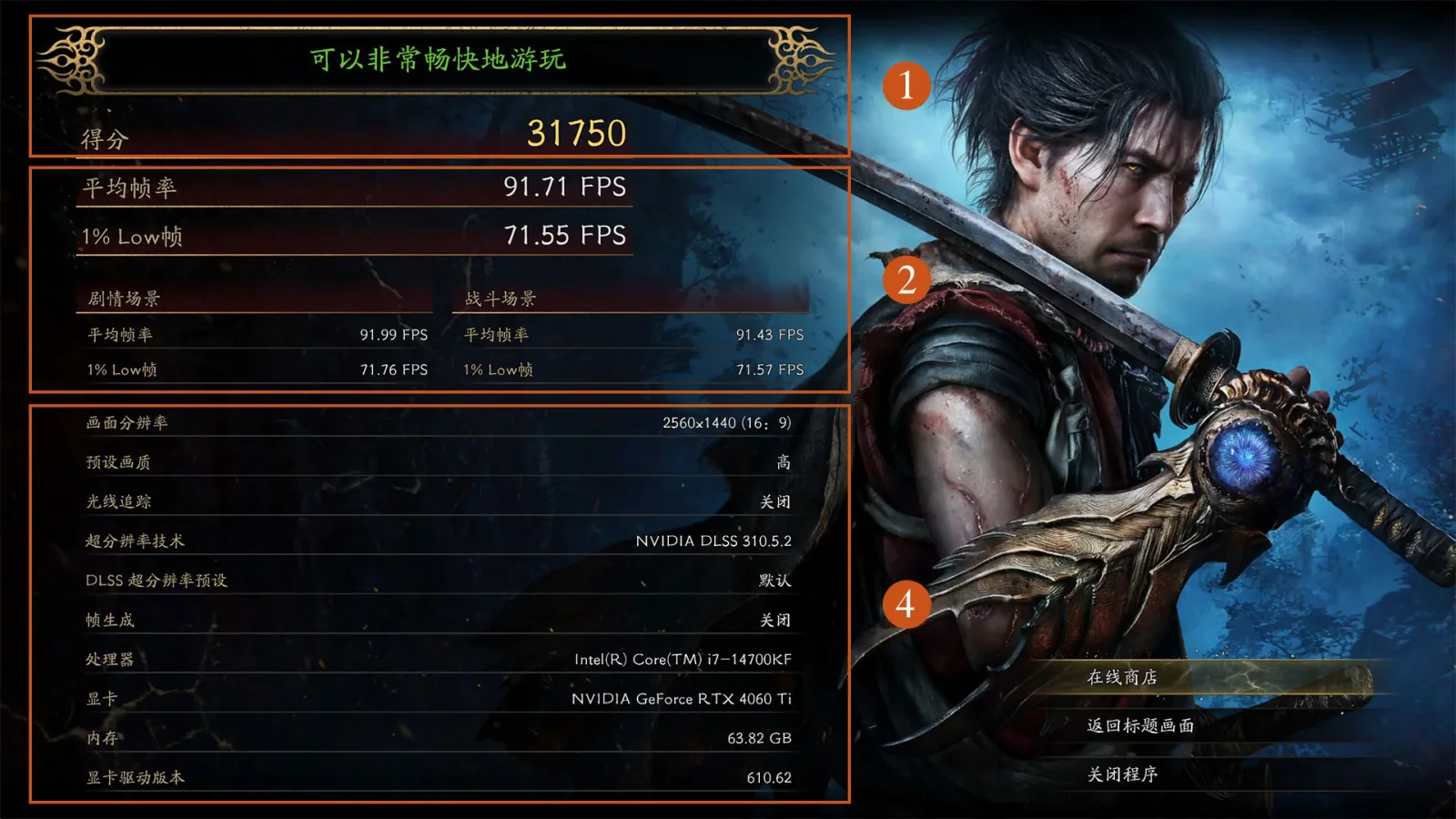
If you can reach the options menu, select a modest graphics preset and set a frame rate limit the computer can comfortably sustain. Start with one limiter rather than simultaneously enabling different limits in the game and several external tools. Keep resolution, upscaling, and other settings recorded so you can restore your preferred configuration after testing.
A frame rate cap has helped some individual setups, but the useful cap differs between machines. There is no universal number that turns every startup or cutscene crash into a solved problem. Choose a conservative target for your own hardware and compare the same failing scene before raising settings again.
If the failure persists, try reducing the graphics workload one setting at a time. For example, compare a lower preset or a less demanding output resolution while keeping the rest of the test consistent. A successful run at reduced settings identifies a usable temporary configuration, but it does not by itself prove a particular engine bug or a defective graphics card.
Temporarily disable optional overlays
Close optional recording, streaming, and performance overlay tools for one comparison run. Disable their in-game overlays through the tools' own settings rather than deleting unrelated files from the game directory. Keep the game, launcher, and necessary input software available so the test remains close to a normal unmodified session.
If the game becomes stable, reintroduce the optional tools individually. Repeat the same scene after each one returns and note when the problem reappears. This gives you a practical way to narrow the conflict without assuming that every overlay is incompatible or that a particular brand is always responsible.
Treat mods as another separate variable. If you installed REFramework or a graphics modification, check its version and undo the relevant installation changes for the baseline test. The mod installation and removal guide explains that workflow; installing a loader should not be your first mandatory step for repairing an otherwise standard copy.
Review the graphics driver change
Use the graphics hardware vendor's normal driver package for your actual device. Note the installed version before updating and restart if the installer requires it. Retest with the same game settings rather than combining the driver update with an entirely new graphics configuration.
A newer driver can improve one setup while another player encounters a regression. If the crash started immediately after a driver update and the previous version worked reliably, consider returning to that known working version through the vendor's supported installation process. Keep a record of both versions and the repeated scene instead of relying on a report about a different graphics card.
Avoid escalating directly to aggressive driver removal tools when routine installation and rollback have not yet been assessed. Those tools introduce more system changes and make the comparison less straightforward. If the entire computer also crashes in other applications, investigate that broader stability problem rather than assuming this game is the only relevant component.
Separate shader work from a frozen application
If the game is performing shader preparation, allow the work to finish before judging normal gameplay performance. A progress indicator that continues moving is different from an application that repeatedly fails at the same point. Record the behavior and avoid repeatedly interrupting a process that is still making progress.
A shader cache reset is a later troubleshooting option after simpler checks. Use an identified cache location or the relevant driver's supported reset control, and avoid deleting unfamiliar folders or game saves. Expect shader work to run again afterward, so give the next launch enough time before comparing the result.
Resetting a cache is not proof that it was the root cause. If the issue returns immediately or survives a successful rebuild, keep that result and move on instead of repeatedly clearing the same files. A useful troubleshooting record includes unsuccessful steps, because they prevent you or support staff from starting the investigation over.
Black screens and repeatable cutscene crashes
For a black screen with continuing audio, check whether the game remains responsive and whether the display connection is working normally. If the menu is accessible, test a supported resolution and an available windowed or borderless mode through the game itself. Do not paste configuration paths or settings from a different engine into an unidentified file.
For a crash tied to one cutscene, retain the save that reproduces it and note exactly where the failure occurs. Compare that scene after file verification, the conservative graphics test, and the driver check rather than starting a new campaign for every attempt. If another save loads normally, that distinction is useful information, not permission to erase the affected save.
Do not delete demo data as a generic remedy for a campaign crash. The demo and full game have different progression behavior, and a theory about save migration needs more than a similar sounding folder name. Keep the demo save and reward rules in mind before changing data that may be needed for a bonus.
Escalate with a reproducible report
If the same failure survives these checks, send support a compact report with hardware, Windows and driver versions, game build, and the exact reproduction steps. Include the error text, the relevant time of the crash, and the changes you already tested. State whether the issue also occurs without mods or overlays and whether it affects other games or applications.
Keep a stable temporary configuration if one reliably lets you play, and revisit it after a relevant update. If every attempt causes a full system failure, stop repeated launch experiments until the wider stability issue is understood. A clear record of what fails and what remains playable is more actionable than declaring the cause to be Denuvo, a specific GPU family, or a universal uncapped frame rate bug.