Wallpaper gallery and downloads
Choose an Onimusha Way of the Sword wallpaper from three images: a dark Kyoto courtyard, a blue Musashi portrait, or the red-and-gray ensemble key art. Each image has a download link with its actual pixel dimensions. The two wide images are 1920 × 1080, and the courtyard image is 1513 × 1080; none of these downloads is a native 4K file.
Start with the composition you prefer, then check how it fits your display. A wide desktop, a tablet, and a vertical phone screen will show different portions of the same picture. The previews below help you choose a subject before you crop or adjust the image on your own device.
| Wallpaper | Download dimensions | Composition | Useful starting point |
|---|---|---|---|
| Kyoto courtyard | 1513 × 1080 | Musashi seen from behind in a dark courtyard | A setting-focused background |
| Musashi in blue | 1920 × 1080 | Musashi with sword and Oni Gauntlet | A character-focused desktop |
| Ensemble key art | 1920 × 1080 | Several characters in red and gray | A full-width promotional composition |
Kyoto courtyard wallpaper
The Kyoto image places Musashi inside a dim courtyard, seen from behind with glowing souls in the scene. It emphasizes the setting and atmosphere rather than presenting a close view of the protagonist's face. Choose it if you want the architecture and supernatural lighting to remain the main impression when your desktop is visible.
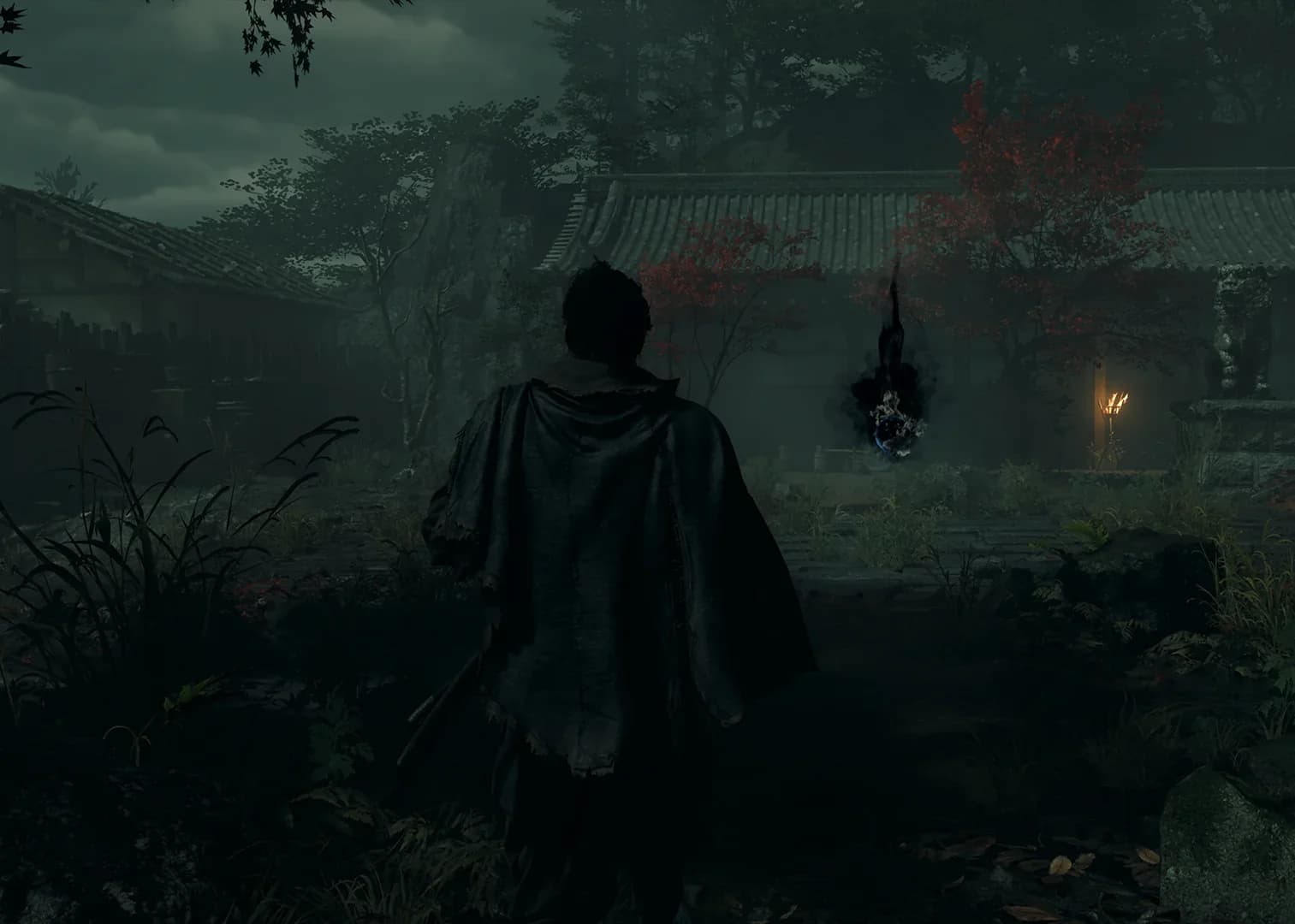
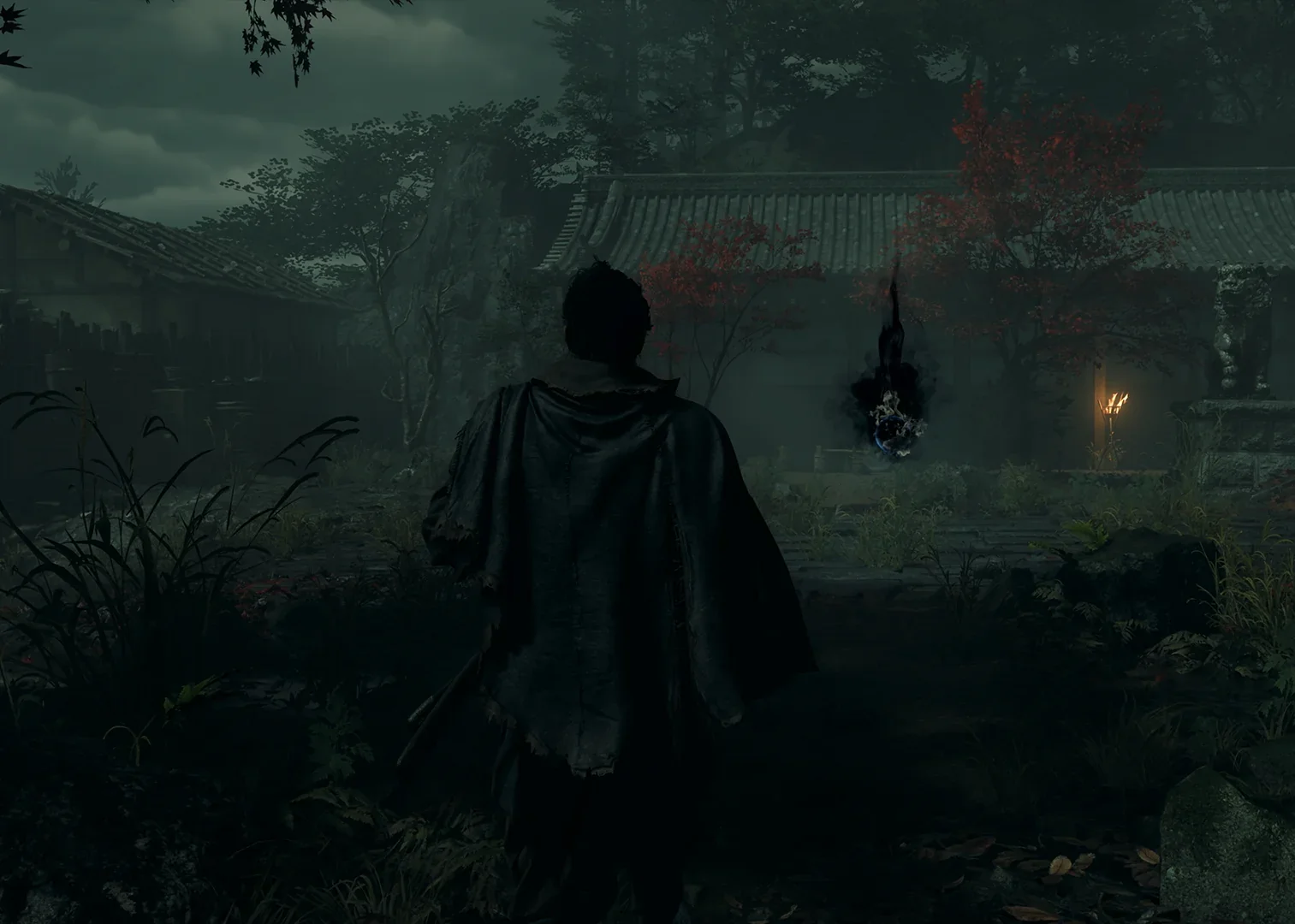
This image is less wide than a standard 16:9 desktop background. Filling a widescreen monitor will require cropping some of its height, while fitting the entire picture can leave unused space at the sides. Preview both treatments before choosing, because preserving the courtyard may matter more to you than covering every edge of the screen.
Keep Musashi and the glow of the souls visible when moving the crop. If the background becomes too dark to read at your normal display brightness, try a different position rather than immediately applying a heavy filter. The balance between the small figure and the surrounding space is part of what distinguishes this picture from the closer Musashi image below.
Musashi wallpaper with sword and Oni Gauntlet
The blue Musashi image shows the protagonist holding his sword, with the Oni Gauntlet visible in a forest setting. Its closer framing makes it the clearest choice if you want Musashi himself to dominate the background. The blue surroundings also give it a different mood from the warmer red-and-gray key art.
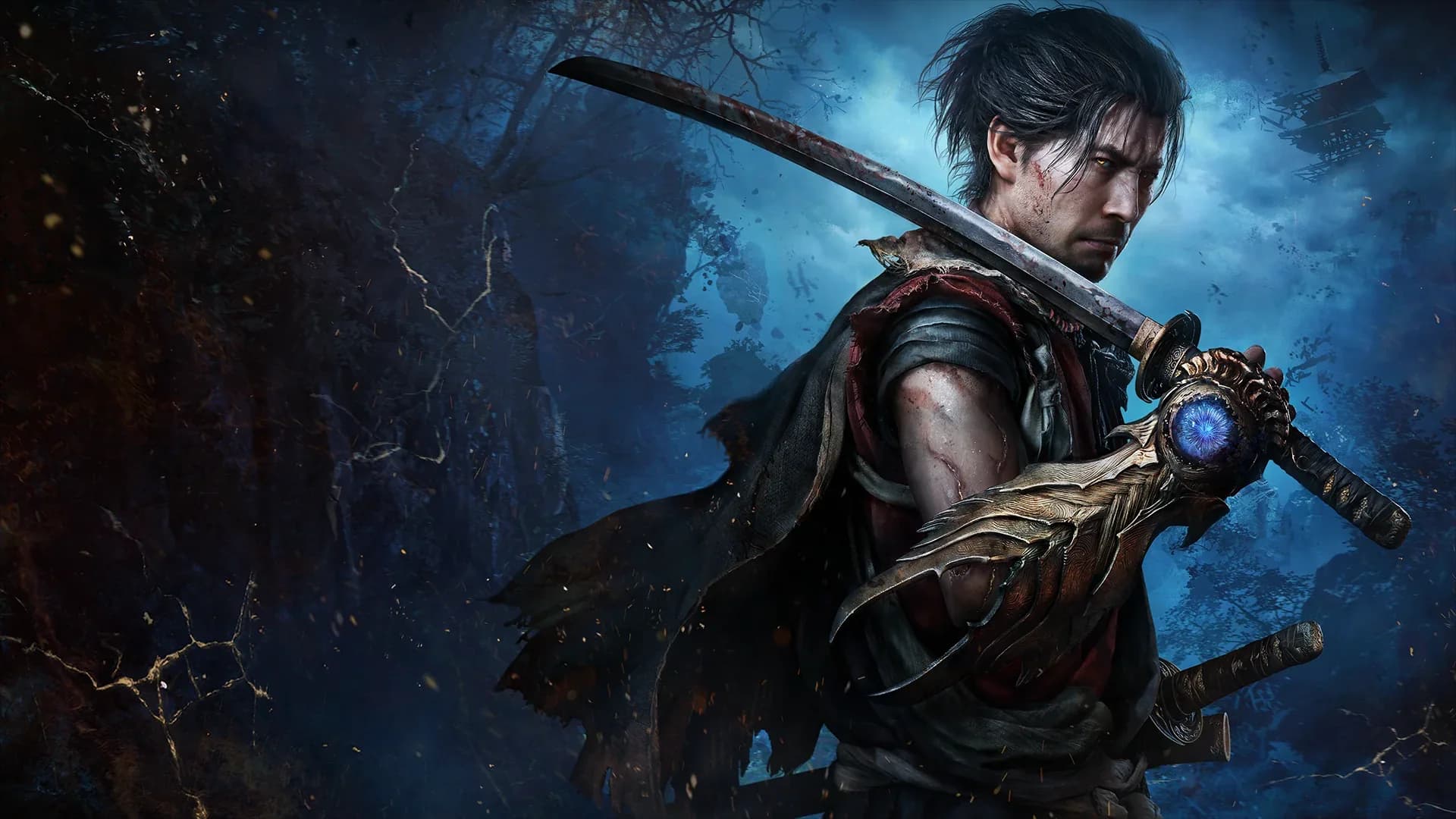
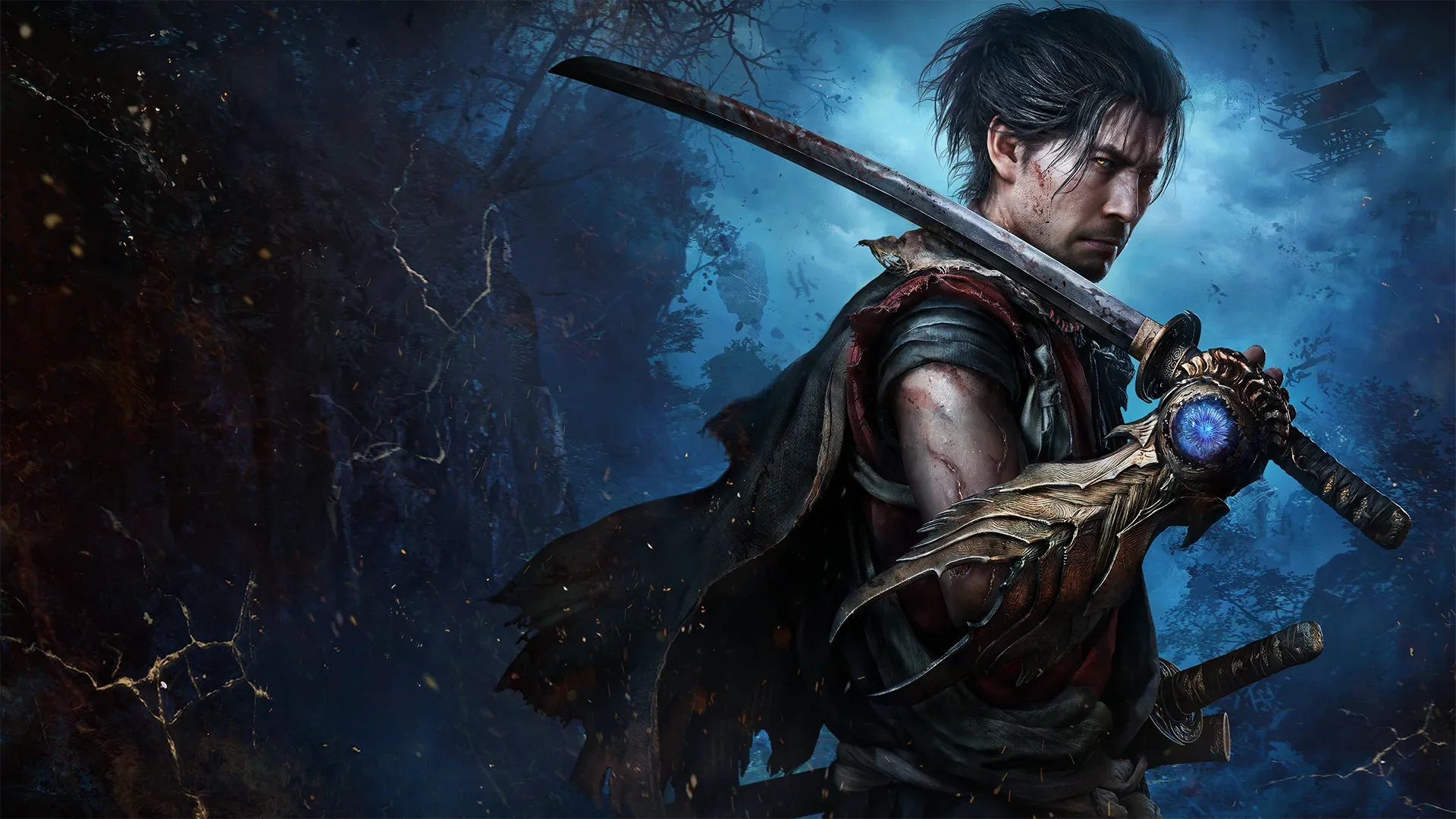
At 1920 × 1080, the file matches the proportions of a 16:9 display. On a screen with those same pixel dimensions, it can cover the desktop without requiring a change in aspect ratio. A larger display can still use it, but enlarging the image will not add the finer detail that a higher-resolution original would contain.
For a phone crop, begin with Musashi's face and then check whether the sword and Gauntlet still have enough room. A portrait screen shows only a narrow slice of a landscape picture when filled from edge to edge. If the composition feels cramped, preserve more of the image with borders instead of forcing every feature into a tight crop.
Musashi's recognizable appearance and the voices associated with him are separate parts of the character. The English and Japanese voice actor guide identifies the performers and explains the connection to Toshiro Mifune's likeness. Use the character guide when you want context for the swordsman rather than another image format.
Red-and-gray ensemble key art
The ensemble key art uses a red-and-gray palette and places several characters within one wide composition. It is a better fit when you want an image that represents the cast as a group. Keeping the full frame visible preserves more of that relationship than a narrow crop centered on a single face.
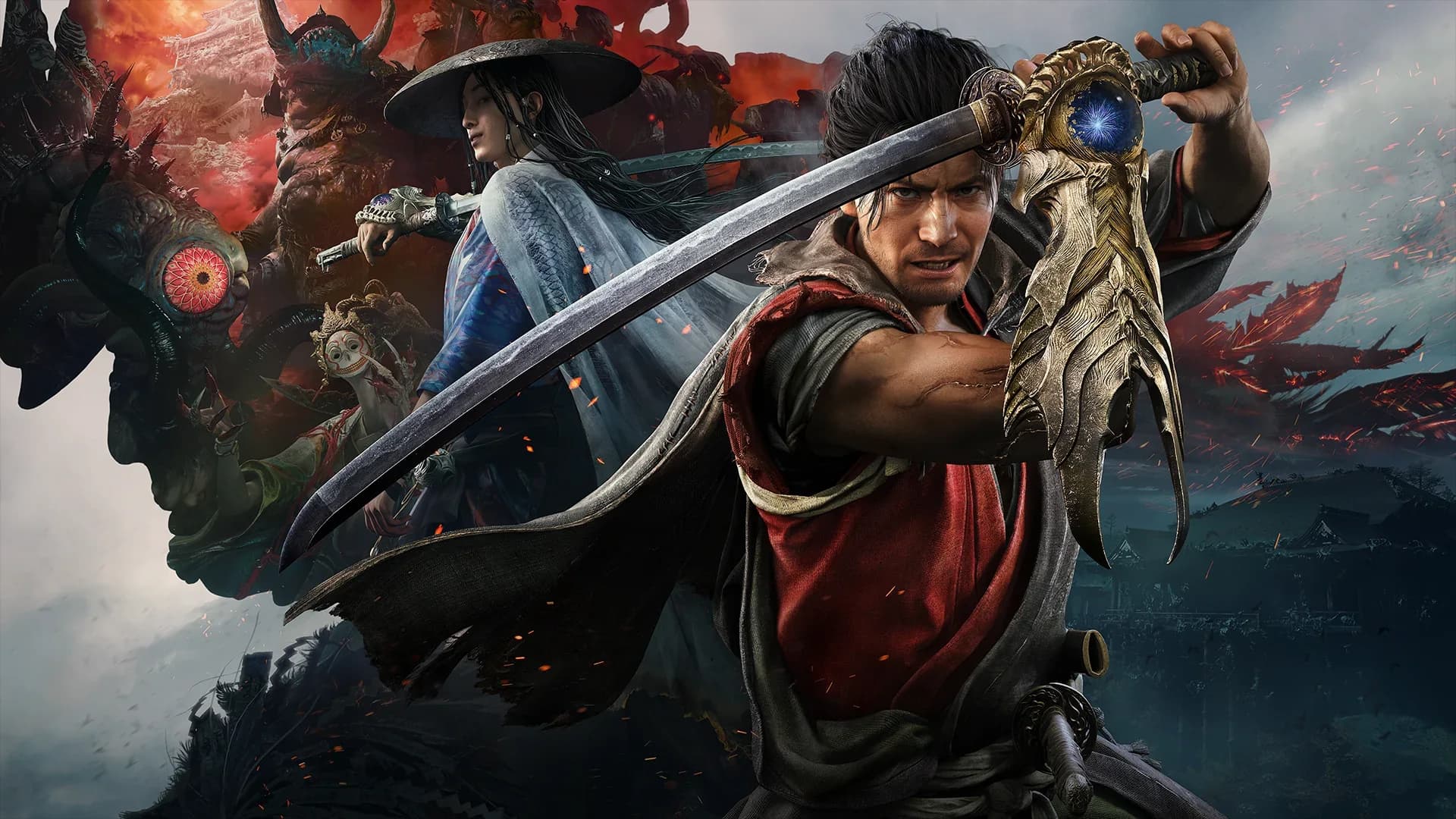
This is also a 16:9 image, so a conventional widescreen desktop is a natural starting point. On an ultrawide display, fitting it may leave space at either side, while filling the display removes part of the top and bottom. Compare the faces and other main details in the preview before accepting that crop.
The multiple subjects can compete with desktop icons or a large lock-screen clock. Try placing the interface over an area with fewer important details, if your device lets you adjust the picture's position. If the composition still feels crowded, use the Musashi portrait for that screen and keep the ensemble image for a cleaner desktop layout.
Choosing the right size for your screen
Pixel dimensions describe the file, while aspect ratio describes its shape. A 1920 × 1080 image is 16:9, whereas a 1513 × 1080 image has a more compact horizontal shape. Two pictures with the same height can therefore need very different crops on the same monitor.
A 4K UHD desktop commonly uses 3840 × 2160 pixels, which is twice the width and height of a 1920 × 1080 image. Displaying one of these wide downloads at that size involves enlargement. It can still look acceptable at a normal viewing distance, but it should not be described as a native 4K wallpaper.
The practical choice is between preserving the full picture and filling the whole display. A fit-style placement keeps the composition intact and may leave borders, while a fill-style placement covers the display by trimming part of the image. Stretching width and height independently can distort faces and swords, so keep the original proportions when adjusting the picture.
Check the result with your normal icons, clock, and widgets visible. An image that looks balanced in a blank preview may put a character's face beneath a notification or make small labels hard to read. That everyday layout is a more useful final test than the picture viewed on its own.
Using the downloads on desktop and mobile
Use the download link beneath the image you want and save the file somewhere you can find again. Open the saved file before setting it as the background to confirm you selected the intended picture. The download label identifies the dimensions so you can compare the actual file with the screen you plan to use.
Keep the original download and make a separate copy if you want to crop it. This lets you return to the full frame when changing devices, rotating a tablet, or trying another layout. Repeatedly cropping the same working file can leave you without the parts of the composition needed for a different screen.
On desktop, begin with the full image and choose a proportional fit or fill option in your system's background settings. On a phone, use the positioning preview to check the face, weapon, clock, and bottom controls together. Exact menu labels differ by operating system, so judge the visible result rather than relying on a particular setting name.
These downloads are WebP image files. If a wallpaper picker does not accept the file, use an image application that can open WebP and export a separate PNG or JPEG copy. Changing the filename extension alone does not convert the image, and conversion should preserve the existing dimensions rather than pretend to create extra detail.
Keeping the composition readable
For a desktop with many files, start with the picture that leaves the most useful space around your usual icon positions. The dark courtyard puts more emphasis on the environment, the blue image concentrates attention on Musashi, and the key art contains several competing focal points. There is no single best choice for every layout because the interface occupies part of the image.
A matching desktop and lock screen do not have to use an identical crop. You can keep the full landscape image on a monitor and make a closer character crop for a phone, while retaining the same color palette. Preview the lock screen after notifications appear, since those elements may cover details that were visible during setup.
These images are game artwork and remain subject to the rights of their respective owners. A download button does not grant a commercial license or permission to sell the image, add it to merchandise, or represent it as your own artwork. Keep the distinction between choosing a personal background and obtaining rights for another use clear.
For more about the city behind the courtyard scene, read the Onimusha Way of the Sword story overview. For the game's broader presentation and visual strengths, the review guide offers additional context. Return to the gallery above when you are ready to download the composition that suits your screen.